Tips and tricks regarding performance and optimization for Cities Skylines Assets

JPN version

KOR version
Intro
Greetings! I am “ComradeIntense” and I am here to show you a couple of tips and tricks on how to better optimize in terms of performance your assets for Cities Skylines.
What you will read further on, are things that I learned on my own in this journey, or things that have been taught to me by others (mostly my mentor - Ronyx69) or at work, and I just want to pass the knowledge to others as well. If there is something you disagree with in this guide, don’t hesitate to contact and correct me, I am learning as well.
This little guide assumes you already know how to make assets (a good resource is Ronyx’s website: http://cslmodding.info), but you are here because you are interested in knowing how your decisions affect the performance of the game for others, and what can you do about it.
I will write short and to the point as much as I can, but there will be a few nerdy parts here and there, which are important for you to understand, so take your time and don’t skip anything.
Let’s go.
Part I
1) What are draw calls?
In simple terms, a draw call is an instruction that the CPU tells the GPU to do. When you load a mesh, the CPU will calculate the position of each vertex of the mesh in the world space and the material(s), after which it says to the GPU:
"Hey almighty 1050 GPU, at position (x,y,z) in the world, there is a vertex, also here and here and here, and all of those vertices make this entire mesh. Between those vertices you need to apply this material at this position on the UV map, and normal map and so on... and draw it on the screen!”
Discussion between CPU and GPU (This is obviously a very simple explanation).
Naturally, it makes sense that the more vertices that need to be calculated or the more draw calls from a lot of meshes = more processing time.
Problems arise when there is a bottleneck. For example you have a very powerful GPU but your CPU is garbage. You load your city and in that scene there are 8738423 meshes (random number I pulled out of my ass) consisting of buildings, props, cims, vehicles, and so on.
The CPU has to calculate all of that for each single mesh (and a draw call for each material) and give instructions to the GPU of what to render on your screen. The bottleneck arises in the fact that the GPU can handle all this without issues, but the CPU will start lagging behind, resulting in idle times in the GPU where it doesn’t do anything.
Here is a good image to describe that:
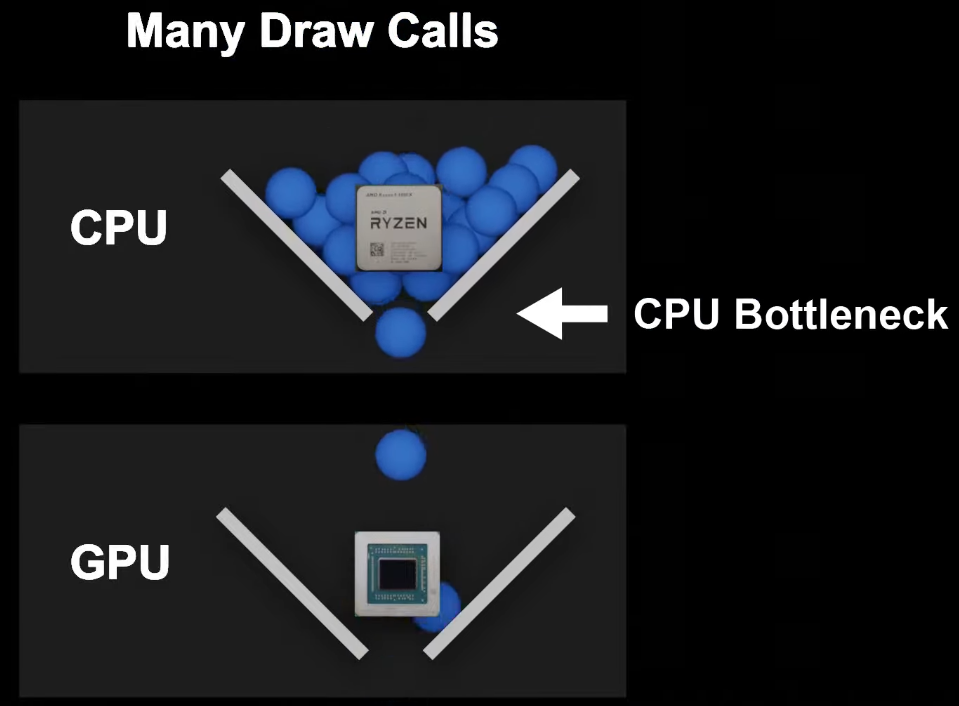
Based on this you can already kinda understand why the game is running with 10fps lol. There are a lot of meshes on the screen, each mesh having its own material, and the CPU has to calculate all of that, constantly, and send all the info to the GPU to render it. When you think about it, it’s quite magical that we can play this game, and it is absolutely insane the brute power of the CPU and GPU nowadays.
2) Do # of Triangles (Tris) matter?
Now that you understand what a draw call is, let’s discuss the big topic: triangles count. First thing to understand is that a vertex is more important than triangles, because those are the ones that get calculated, but since 3 verts form a triangle, you can’t “ignore” triangles from the discussion.
Whenever you model an asset keep this in mind:
fewer triangles = increased performance
fewer triangles = fewer vertices that need to be calculated by the GPU
calculating/processing vertices is expensive.
Realistically speaking, modern GPUs can render scenes with thousands of triangles without many issues (explained a bit in next topic), however that shouldn’t give you an excuse to model everything, every single little detail, because you have to see the big picture: if everyone is ignoring that, the performance hit would be quite significant, so whenever you model something, try to keep the tris count on the lower end and don’t use more triangles than necessary.
Ronyx69 said it well: “It doesn’t matter that your asset is 5k or 25k tris, -in isolation by itself-, but you are a drop in the ocean together with all other assets. Since there’s hundreds of assets on screen, 1k tris here or there for each asset would make a difference”.
3) Difference between Cities Skylines and other games
In other games, developers use different tricks to increase performance. For example, what do you think is easier for the CPU/GPU to render? 1 single mesh with 100.000 triangles, or 100 meshes with 1000 triangles each? The answer is 1 single mesh because you do 1 draw call for the mesh and 1 draw call for the material. Among many little ‘hacks’, game developers combine multiple meshes together into 1.
Also, in other games, developers optimize the scenes, by using higher tris count for meshes that are close to the player/camera but very few triangles for meshes that are in the background, sometimes even going with baked details on flat surfaces.
In Cities skylines, we don’t have that luxury, as it is a wild west. Players subscribe to a lot of buildings, props, vegetation, etc, and place them wherever they want on their map, and that creates a pretty much unoptimized scene as there is no limitation. Understand that for each of those meshes, the CPU must do draw calls which are expensive.
So it is important to be mindful about your triangle/vertex count but I would say you shouldn’t be obsessed by it. Find proper balance between what has to be modeled and what can be faked on the normal map or diffuse and try to be on the lower side.
Part II
5) Vertex Precision Loss
In games there is a world origin point which is x,y,z = 0,0,0. From there, all the vertices that form meshes get calculated relative to the world origin. Sometimes, game developers calculate the position of vertices relative to the camera, or sometimes they just shift the world origin. I have no idea how Cities Skylines does it (probably center of map is (0,0,0)), but that’s irrelevant, just bear with me.
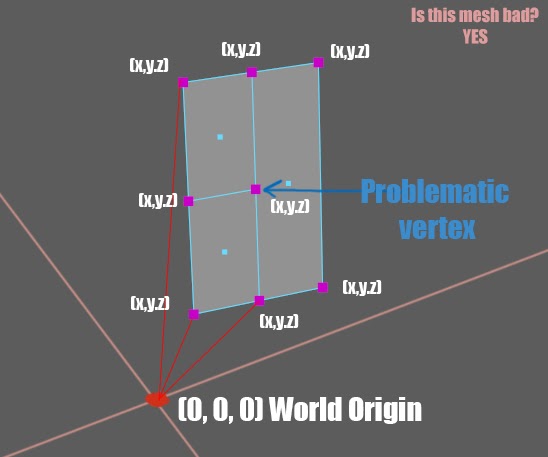
When I talked in Part I that when a draw call is made for a mesh, what happens is that each vertex is calculated in the world space, aka where it is positioned in space, relative to 0,0,0 (world origin), and then it is sent to the GPU to draw it on your screen.
All the information about each vertex position is stored in a 32 bit float container and it is called a “floating point”. (Don’t get scared, that’s the only nerdy part i’ll talk about). The idea with floating points is that they are precise only to a certain point.
The further away the vertices need to be calculated from the world origin (0,0,0), the more prone to error the mesh is, because the CPU cannot calculate the exact vertex position precisely, and vertices will start losing precision, but the disconnected ones will cause visible issues.
In our case, the vertex in the middle of our mesh is not connected to anything. The CPU will keep trying to calculate it’s exact position but after a while it will start losing precision. When that happens (an exaggerated example) can be seen here:
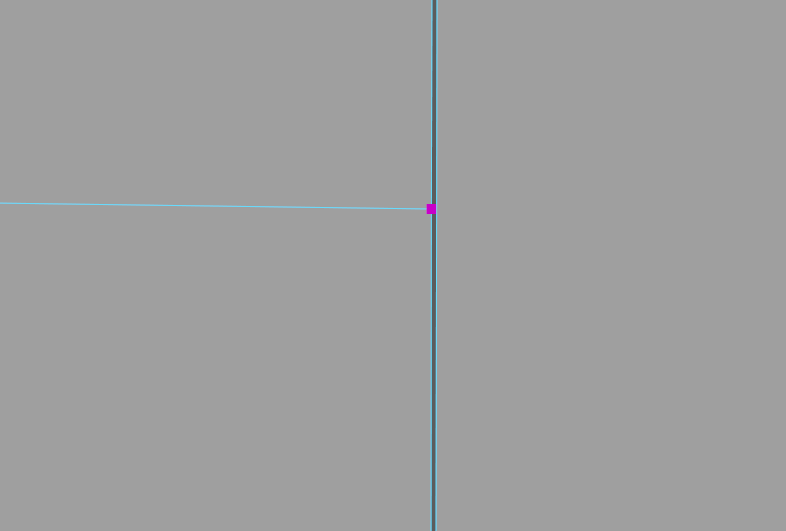

Since the vertex is not connected to anything else, it will start making holes in the mesh and that will turn into different shading problems / holes where light pokes through / bad artefacts and all kinds of other weird glitches.
So how to fix this?
You must have your mesh “closed” so to speak. In our case, that vertex should be connected somewhere, for example like this:
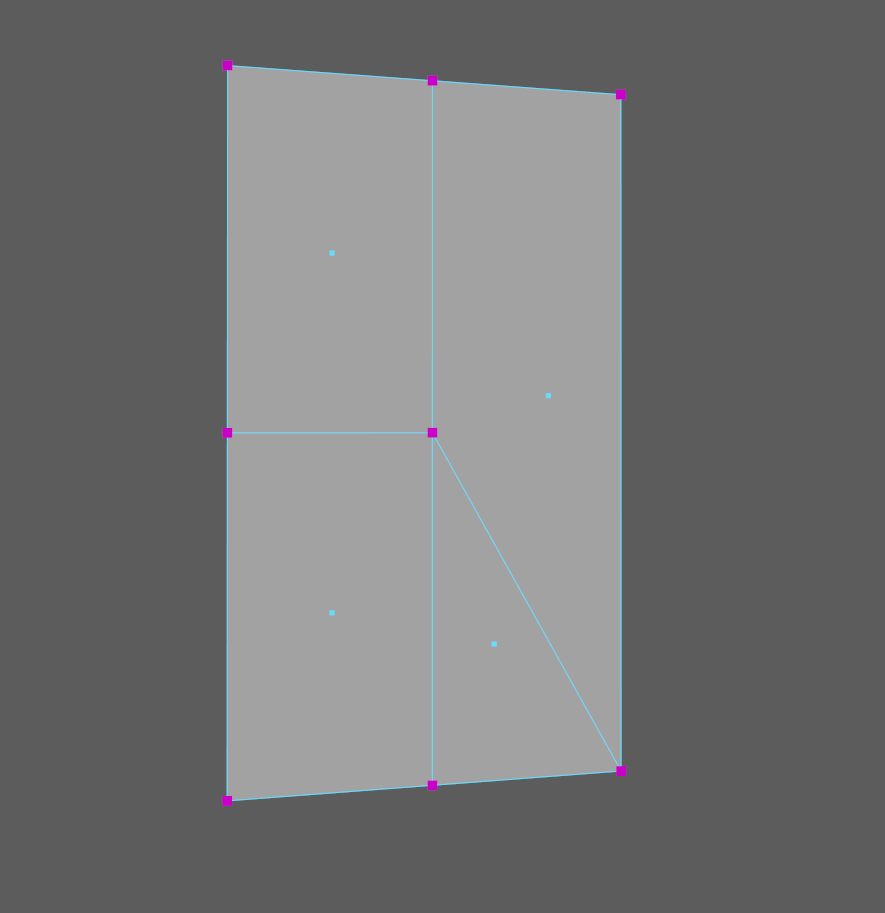
Now even with the precision loss, the mesh is still connected, and at worst, the vertex will just shift it’s position a tiny tiny tiny bit, but there won’t be any visible errors at all.
If however there is no possible way for you to connect the vertices, you can just overlap the vertex a tiny bit with the face next to it like this:
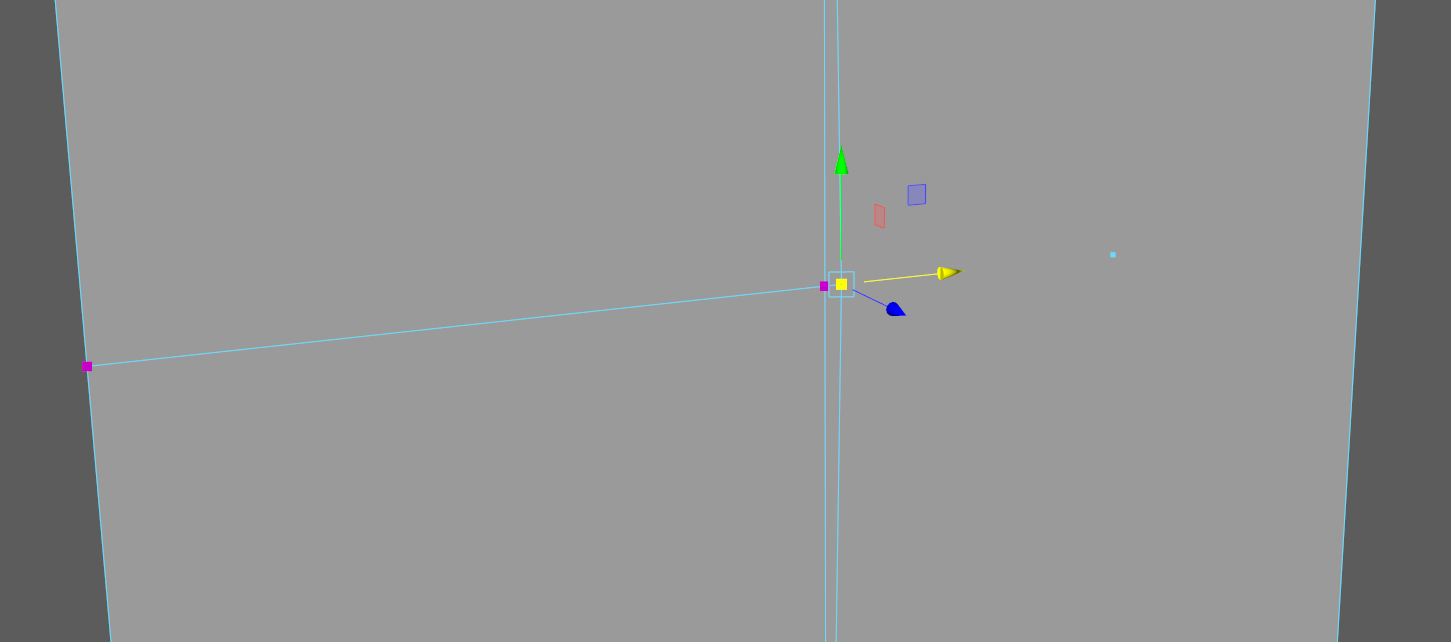
(Exaggerated example, but I moved the vertex to the right, to overlap the face next to it). It is not an ideal solution and you should do this only if you have the same texture, so the overlapped faces won’t Z-fight and create annoying flickering.
So, you should keep your vertices connected, even if it increases the amount of triangles. Also, make sure to merge your vertices.
As a bonus to further drill this idea inside your brain, check this video https://youtu.be/Xfh3oTIqJW8?t=305 from the game Minecraft, when it was in an old version. The guy was testing what happens if you teleport further and further away from the world origin.
Because he was sooooooooo far away from the world origin, the blocks couldn’t be rendered properly anymore (the cpu was having a hard time figuring out the exact position of each of the 4 vertices that make a block) and you can clearly see how bad it gets. I don’t know the exact solution to how Minecraft fixed this, but most likely the world origin is shifted constantly (my guess).
6) Overdraw
Overdraw in games is generally seen as the silent killer and can quickly ruin the performance of a game if it’s not optimized. So what is it?
To put it simply, overdraw is when the gpu has to render overlapping pixels aka over - drawing, which takes time, memory and performance. The purpose of your mighty GPU is to render the scene you look at, and put that image on your screen. And fast!
I promised I won’t get into technical things (even though Overdraw is quite interesting to understand), but I will give you an extremely simplified version so you understand it better.
Here is a great example:

In this image (imagine this is a 3d rendered scene), the CPU would make draw calls for the environment ( the couple in the back ), and draw calls for the glasses. After that, the GPU has to render the pixels on your screen, and to do that, it would take a lot of time to render BOTH the couple AND the glass lens (overlapping pixels on the right lens of the glasses).
So what can you do about overdraw?
Imagine you have this scenario, where you have this building which is made with two ‘shapes’, the tall one, and then the long one that goes through the main tall one. To avoid making a lot of cuts and saving on triangles, you decide to go through the main building like this:
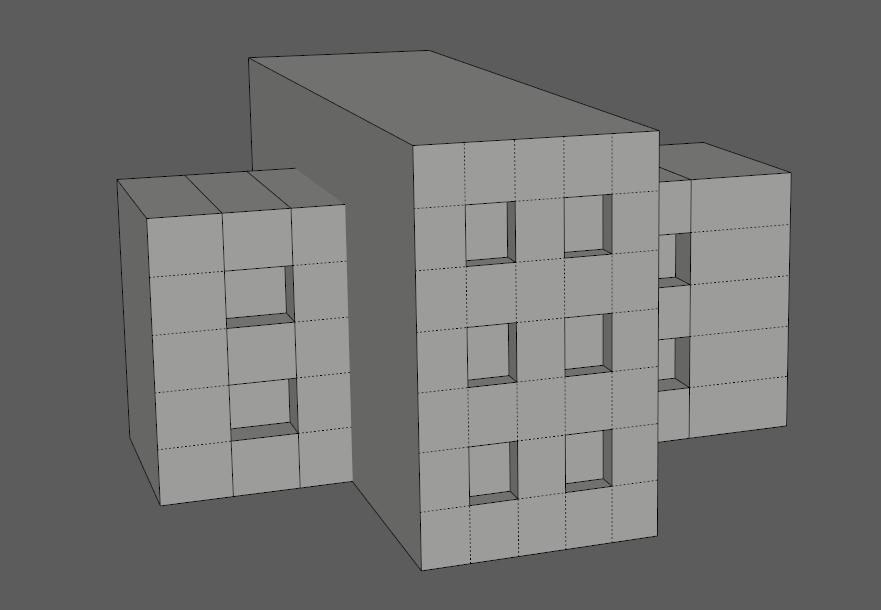
Seen from below:
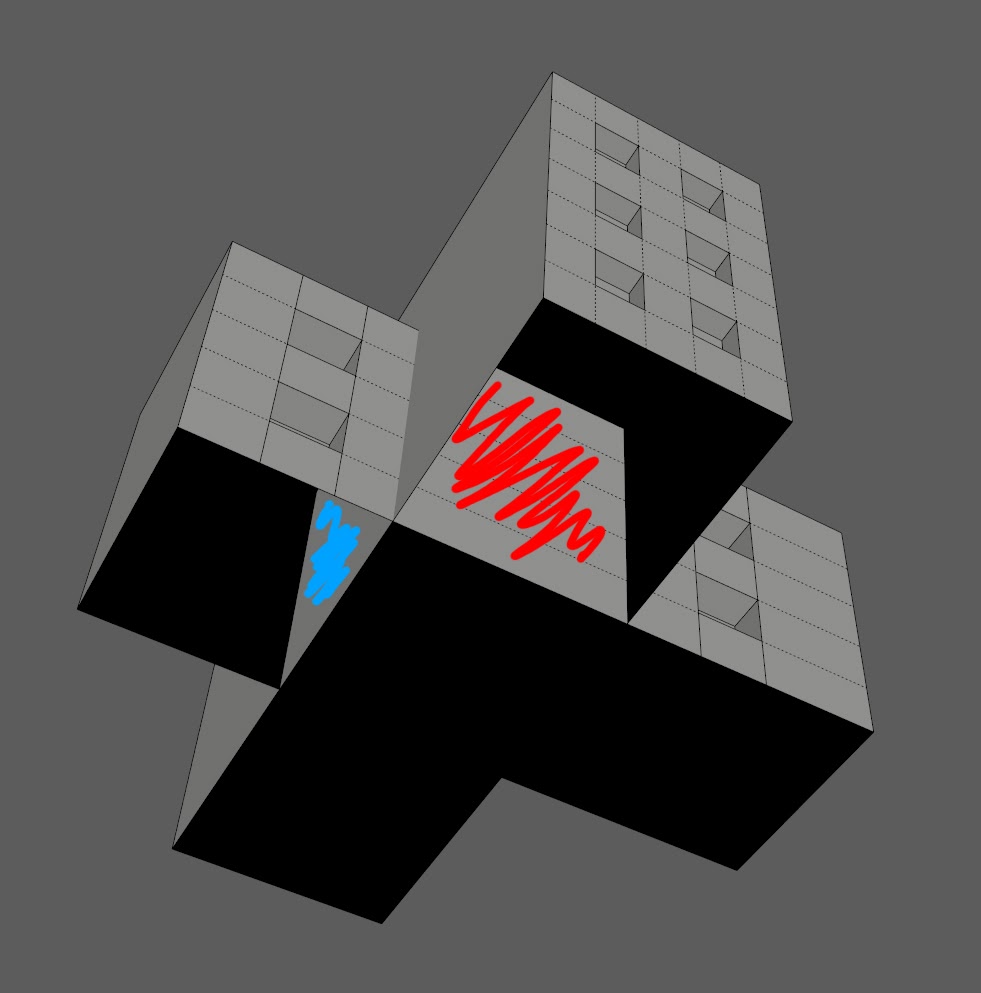
In this case, the red and blue area on both buildings are OVERDRAWN, and you must cut them out because of overdraw. Basically, the GPU has to render those pixels (which you will never see), marked in red from the tall building and blue from the main building.
To avoid overdraw, you should cut your model like this, by cutting out the big area which the camera doesn’t see, and preventing the GPU to work more than needed:
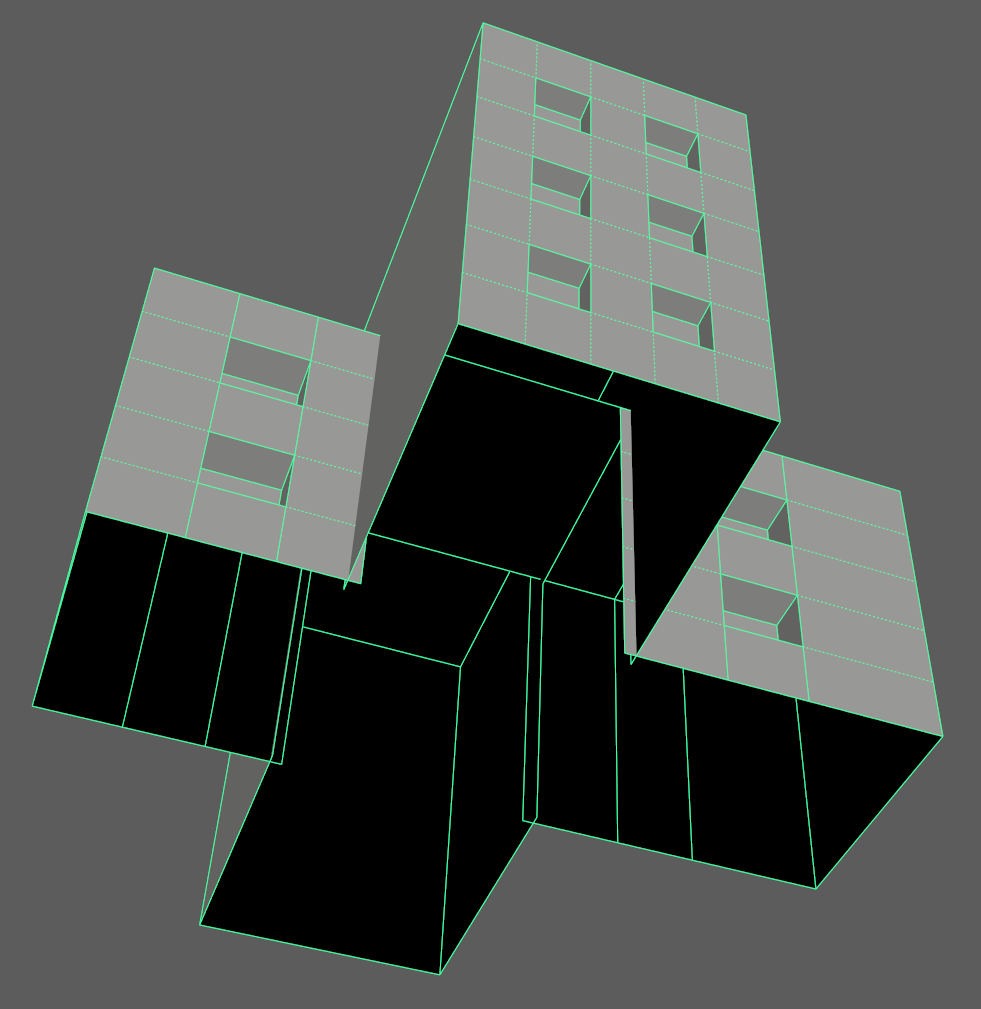
Exploded view for better understanding:
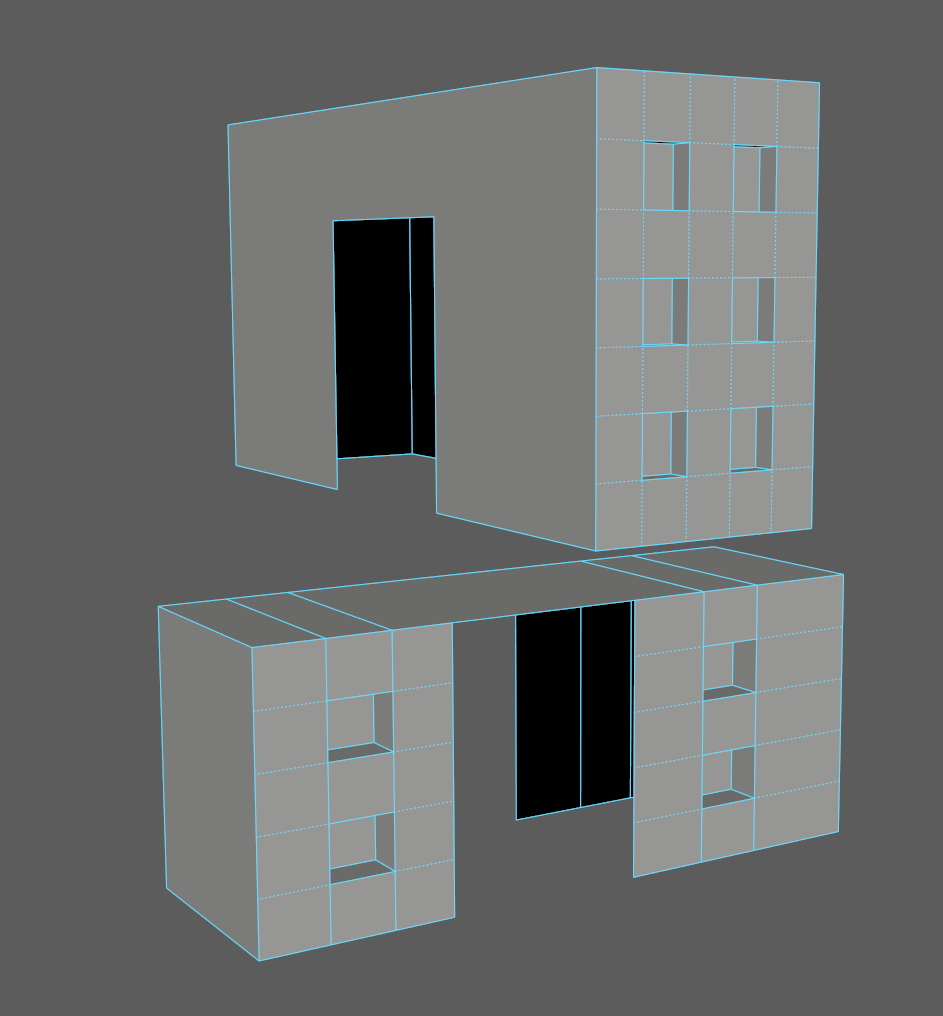
(This is just an example specifically to describe overdraw. The mesh is not properly triangulated, and there are a lot of Ngons)
Main takeaway: don’t make the GPU render pixels which are not seen to the camera!
Another example to illustrate the overdraw. You have this image of a sword and you will add it in a game.
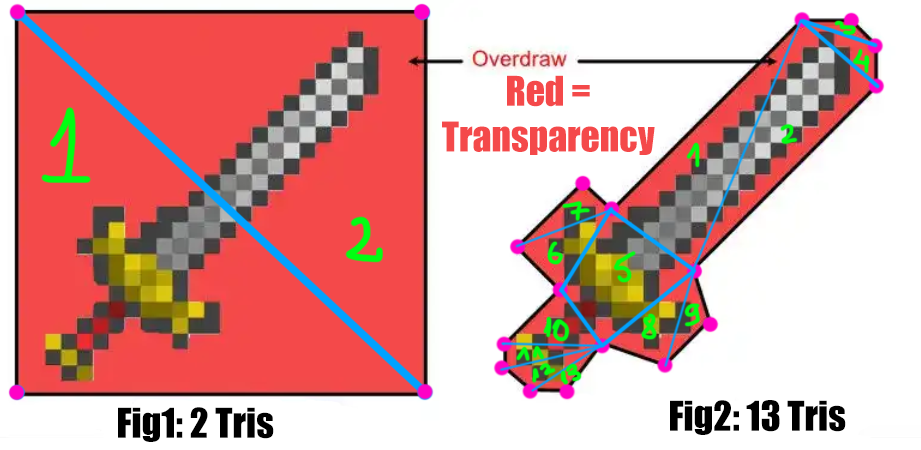
What would be better ?
To go with Fig1 where you have only 2 triangles or go with Fig2 where you have 13 triangles ? In the image, the red part is alpha, transparent.
If you understood everything so far, the clear answer is figure 2. The increase in triangles doesn’t matter, what you absolutely want however, is to reduce the overdraw! Even though the pixels in the red area are transparent, they are “there” so to speak. The CPU will do a draw call for that shape and the GPU will STILL calculate them, just that they will be turned invisible. Waste of time and memory bandwidth.
Please note that this last image was just an example to better illustrate overdraw. You shouldn’t do this for very tiny faces with alpha in Cities Skylines.
(correction: it’s actually 15 tris in FIG2, I forgot to triangulate # 5)
7) Overshading
The close relative of Overdraw is overshading, and again, it is a performance culprit. The cause of overshading are thin triangles which you should avoid as much as possible, because the GPU processes pixels in blocks of four pixels arranged in a 2x2 pattern. So if a triangle touches just a tiny bit a single pixel of a 2x2 quad, the GPU will process the whole quad and just throw away the other 3 pixels, which is 75% wasted work. If you do this plenty of times, it adds up quickly.
Here is an explanation:
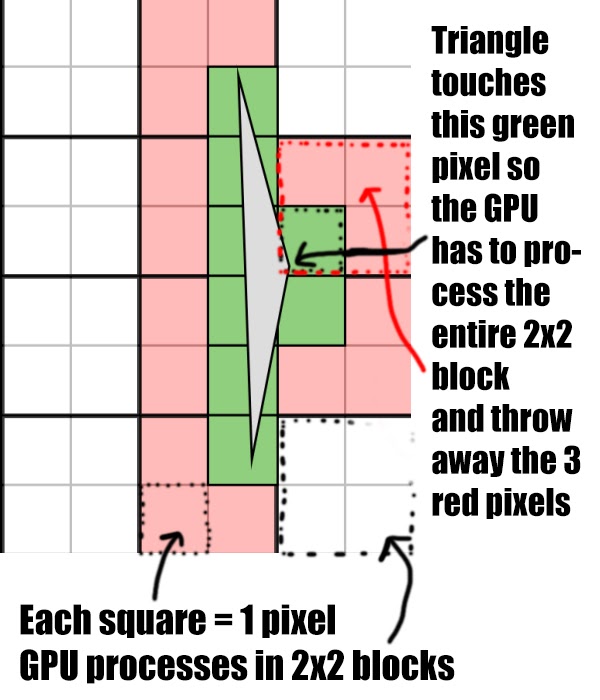
On a building I did some time ago, I had this dilemma. I wanted to save on triangles so I merged all the vertices on the top and bottom (the most right side face). Technically, you won’t see any issues with this ingame. However, you are making the GPU work harder for something which can be simplified by adding a few extra cuts. Sure, the cost will be more triangles, but as already explained it doesn’t matter that much compared to the wasted work the GPU has to put in.
Here is the building and to clean it up I came with this solution, and everything is connected properly (before and after):
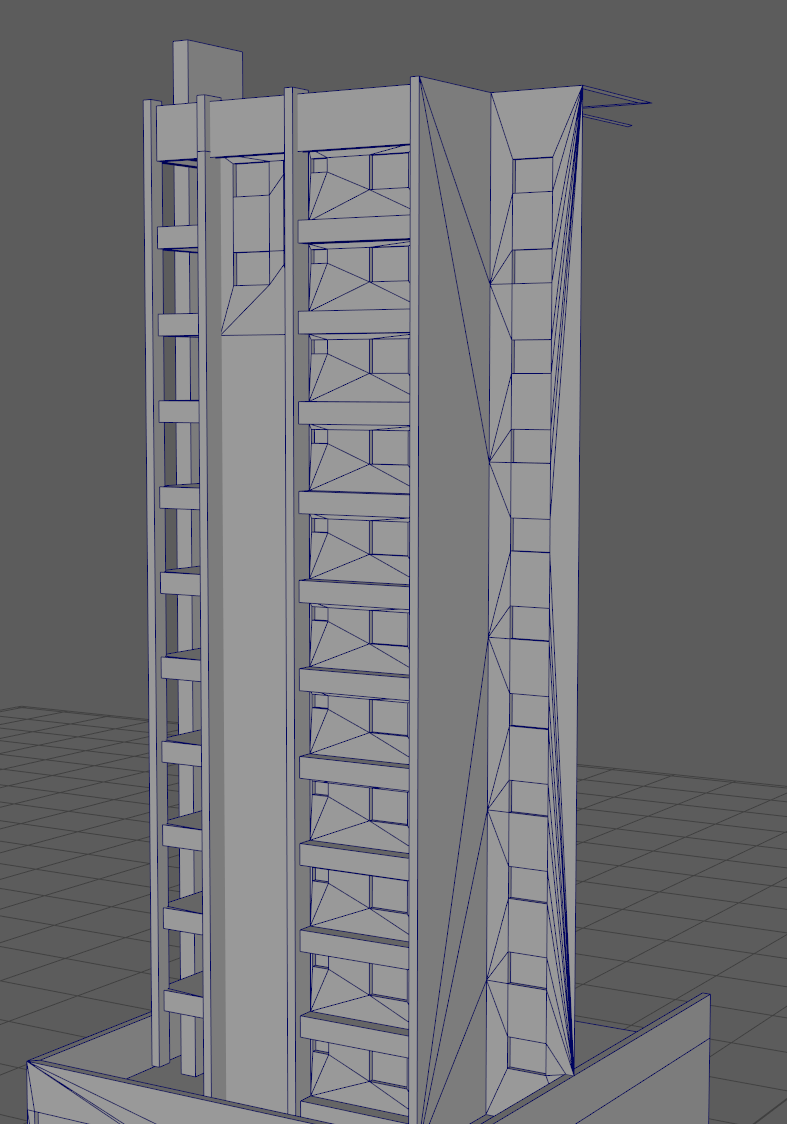
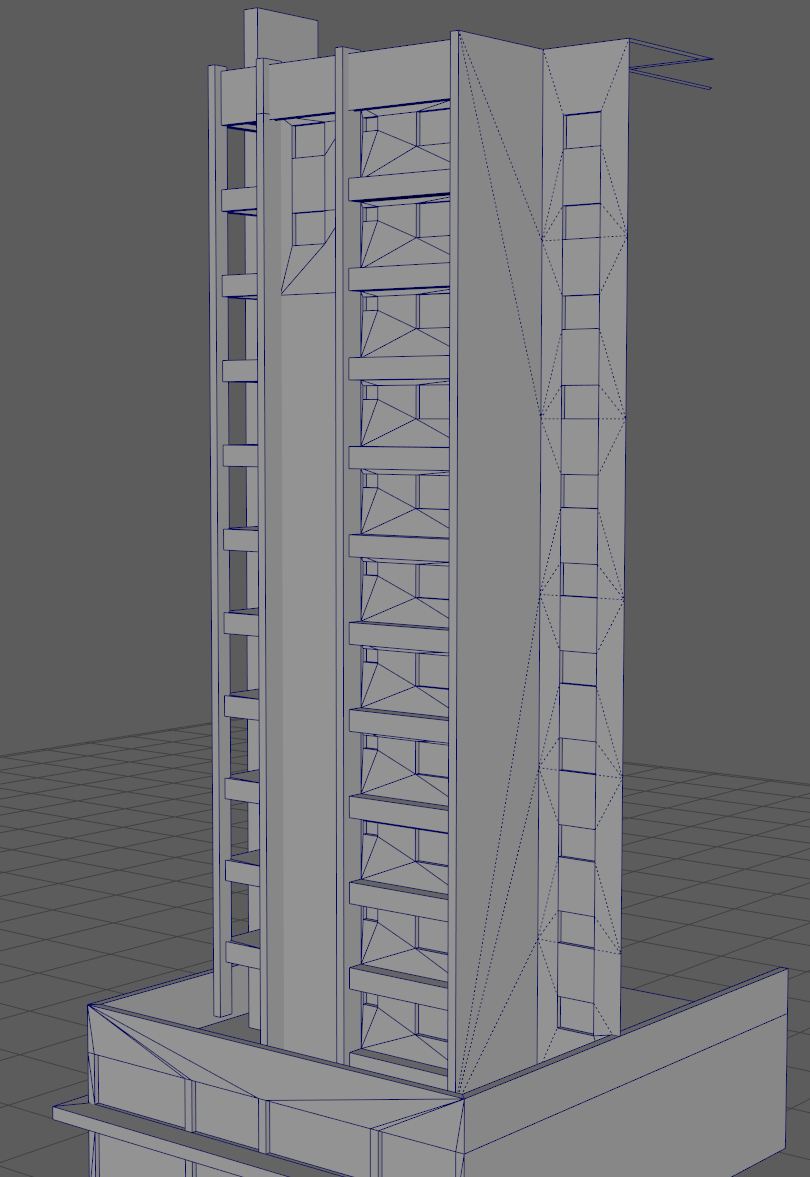
An argument can be made about the fact that modern GPUs are insanely fast at calculating this, however, I see it as sweeping dirt under the rug. It literally takes very few minutes to come up with a better topology and solve this issue, so as much as possible try to avoid having on your mesh long thin triangles.
Part III
8) Power of 2 on textures
There has always been some debate about using power of 2 on textures, aka 32 (smallest), 64, 128, 256, 512, 1024, 2048, 4096 (very big). A texture can be any ratio, it doesn’t have to be square, for example: 256x2048 is perfectly fine.
What you should never do, is to use textures which are not powers of 2.
You might say: “But I never had problems with that”
There are two important things to keep in mind:
A) Compression
When you save your texture file and you load up the asset editor, the game engine will convert your texture to DXT format which is a compressed texture format, DXT being the compression algorithm. The compression cannot happen if your texture is not divisible by 32, so stick to the numbers above.
B) MipMaps
When the textures get loaded, the game engine generates mip maps for those textures. A mip map is exactly LOD for textures, and those are copies of your original texture that get saved at lower resolutions. When the mesh is further away from the camera, the lower resolution texture will be applied, and it will keep shrinking down, the further away you move your camera. Same goes the other way, as you move closer, you will see larger texture sizes, all the way to original size.
Here is an example of a mip map chain:
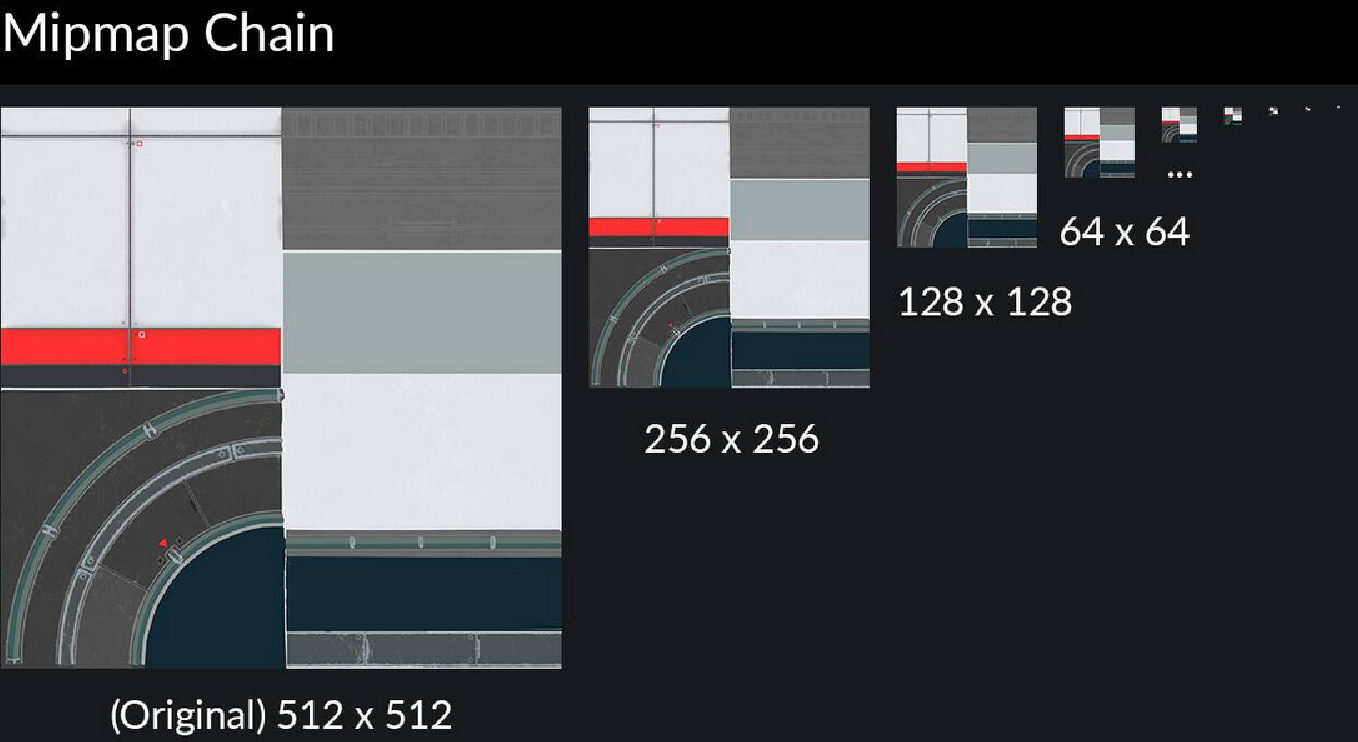
This happens automatically by the game engine, you don’t have to do anything.
So how does this relate to power of 2?
Now here is the thing. If you don’t use a power of 2 texture, your texture can get corrupted by compression and it is visible at longer distances or when you look at the mesh from an angle. The texture will still work and you will see it on your model, but there are issues behind it.
Another thing is, in some game engines, for example Unreal Engine, mip mapping doesn’t even occur if you don’t use a power of 2 texture. Unity engine (the one Cities Skylines uses) has a different workaround.
The engine let’s you use non-power of two textures, but those take more memory and are slower to read by the GPU, because the engine forces mip maps, and to do that it scales and pads your texture to the next power of 2, so for performance reasons always stick to power of 2 on your texture resolution.
9) Texture size
At the end of the guide, let’s discuss texture sizes, as this is again, a performance hog like all the others. The larger the image resolution size, the more memory (VRAM in your GPU) it will use when trying to render it on the screen.
Let me first explain to you a few things:
Whenever you save the textures that you do as PNG on your hard drive, that size in kilobytes or megabytes doesn’t matter, as the textures will get compressed through DXT when imported ingame, DXT being a compression format.
Also a thing to point out is that the memory usage is not dependent on how complex or detailed the texture is.
The only thing that matters is the resolution size so you should strive to make this as low as possible while keeping some nice detail.
As explained in the previous chapter, in Cities Skylines, DXT will compress the textures for efficient storage in the following way:
_diffuse
_alpha + _color + _illumination together (ACI)
_normal + _specular together (XYS)
You can see a good chart made by Ronyx69 to see what size those compressed textures will have:
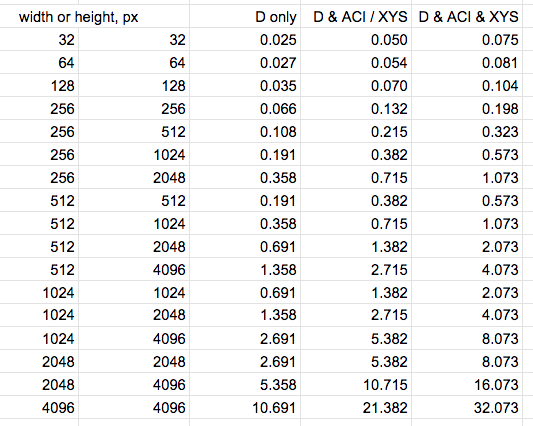
above chart is in MB
Keep in mind that the final size on the asset is not 100% from textures alone, but those are usually most of it.
OK, so what now?
Well, if it’s not obvious by now, the same as with triangles count: don’t use a texture size larger than needed. Easy right? This is the biggest problem, because to do this properly you need some experience. When I first started making assets, I was absolute garbage, and I made some horrible mistakes, going with huge sizes for textures which nowadays I could make them in half the size or lower.
The problem comes in the way people got used to making assets and lack of experience in the right ‘direction’, and this is where people will start hating me, but it is the reality. A lot of asset creators simply find a good photo of the building (or parts of it) they want to make, import it in blender, and then extrude faces on those. And then they teach other creators how to do this and the cycle keeps repeating in a bad way.
But what’s wrong with that you might ask. The problem with this is you end up with quite a big resolution size for the textures, because they prefer to have larger faces which cover a big size on the texture instead of trying to think what parts of the texture could be reused, what areas could be tiled, and so on which in turn would make the resolution size way smaller, but that is a topic for another day, or a different guide. Here I just want to focus on things which affect the performance.
I can safely say that the vast majority of assets don’t need a texture higher than 2048 resolution, and also not everything needs to be modeled out.
Outro
This is the end of the guide and I truly hope you take those tips and tricks in your arsenal when you do assets for Cities Skylines.
Initially I was trying to think of an order of importance in terms of performance but thinking about it, all those are pretty much equally important, and shouldn’t be ignored.
For example:
A mesh with no textures but high amount of triangles = triangle count is the problem
A 100 tris mesh with 4k resolution size texture = texture size is the problem
A low tris mesh with low resolution but with overlapping faces everywhere = overdraw is the issue
… and so on
In the end, read this guide, refer back to it and think about all those things when you create your next asset. Try to constantly make progress and each new asset that you do, should be better than the previous one, as you keep on learning and you can see the mistakes that you made in the past.
Hope this was useful to you, and if it was, share it with others.
Comrade Intense, peace.